

Key Takeaways
Computer Hardware Specs
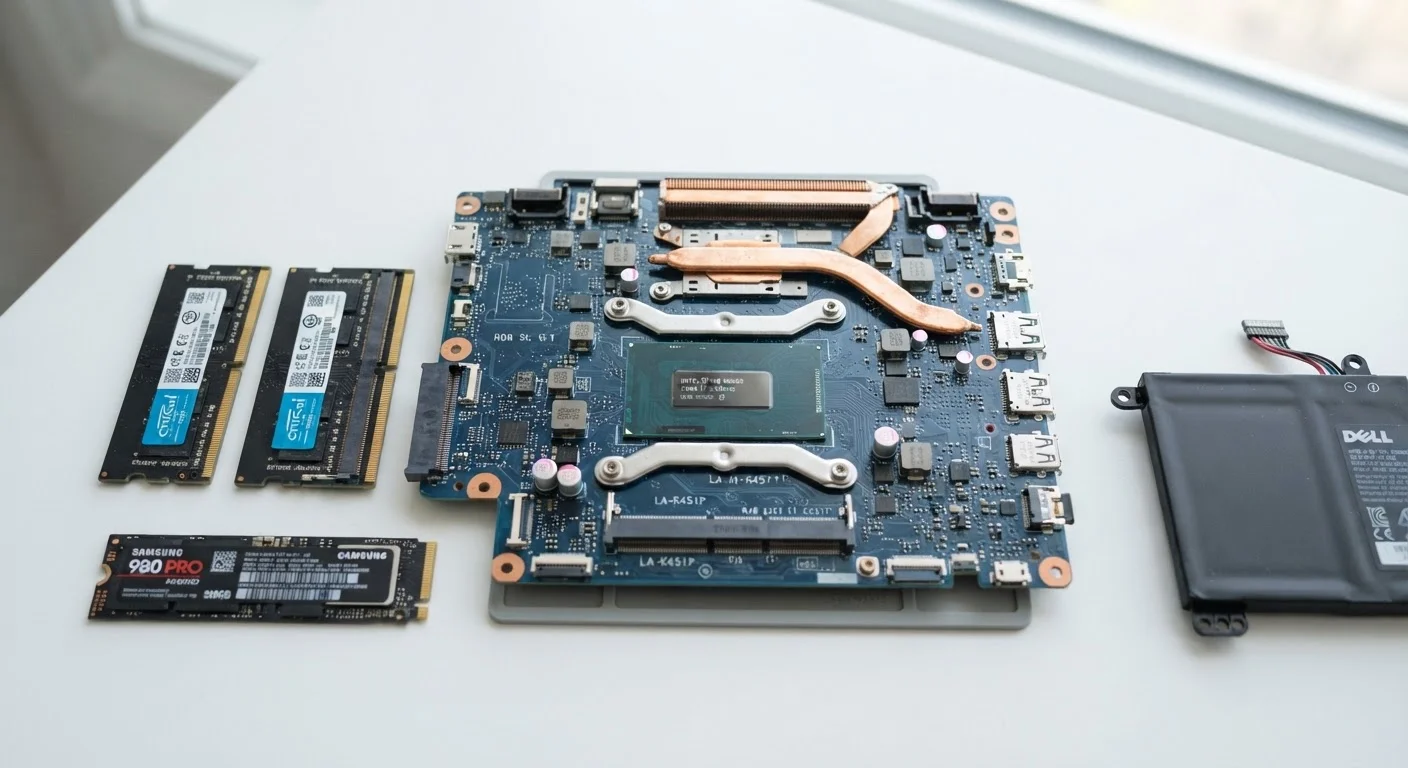
Computer hardware specs are the measurable characteristics of the physical components inside your device. RAM, storage capacity, and processor speed are the three specs most likely to affect how fast and capable your computer feels in everyday use. Each one does a different job, and understanding the difference helps you diagnose slowdowns and set realistic expectations.
These three components interact constantly: a fast processor bottlenecked by insufficient RAM, or slow storage, will still underperform relative to its rated speed.
RAM: Your Computer's Short-Term Memory
RAM stands for Random Access Memory, and the best way to picture it is as your computer's active workspace - the desktop where open tasks, apps, and browser tabs sit while you're using them. Unlike storage, RAM only holds data while the computer is on. The moment you shut down, everything in RAM clears out.
When you open a program, your computer loads it from storage into RAM so the processor can access it quickly. The more RAM you have, the more programs and browser tabs can stay active at once without competing for space. When RAM fills up, your operating system starts using a portion of your storage drive as a slow overflow area - a process that noticeably degrades performance.
RAM is measured in gigabytes (GB). The practical difference between 4 GB, 8 GB, and 16 GB is significant for multitaskers. Hitting your RAM ceiling is one of the most common causes of a sluggish computer - something covered in depth in our guide on what's actually happening when your computer slows down.
Check Your RAM Usage Before Upgrading
On Windows, open Task Manager (Ctrl + Shift + Esc) and click the Performance tab to see how much RAM is in use during your typical workflow. On a Mac, open Activity Monitor and check the Memory tab. If you're consistently at or near 100% during normal use, more RAM would likely help more than a faster processor.
Storage: Your Computer's Long-Term Filing Cabinet
Storage is where your files, photos, apps, and operating system live permanently - even when the computer is powered off. It's measured in gigabytes (GB) or terabytes (TB), and it has no direct relationship to speed. A 2 TB drive does not make your computer faster than a 256 GB drive.
What does affect speed is the type of storage. Traditional hard disk drives (HDDs) use spinning magnetic platters to read and write data. Solid-state drives (SSDs) store data on flash chips with no moving parts, which makes them dramatically faster at loading programs and files. The gap between the two is one of the most impactful hardware differences a user can notice - our article on what changes when you switch between SSD and HDD explains this in detail.
One practical note: when a storage drive is very full - typically above 85-90% capacity - performance can degrade regardless of type, because the system struggles to find contiguous space for new files.
~10×
Speed difference between SSD and HDD sequential reads
Typical consumer SSDs achieve sequential read speeds of 500-7,000 MB/s depending on type, compared to roughly 80-160 MB/s for conventional hard disk drives.
16 GB
RAM commonly recommended for general multitasking
Many technology guides and hardware analysts cite 16 GB as a comfortable baseline for users who multitask with browsers, productivity apps, and light media tasks.
85%
Storage fullness threshold where performance can degrade
Storage drives - particularly HDDs - can begin to experience performance issues as they approach or exceed roughly 85-90% capacity due to fragmentation and limited free space.
Processing Power: The Engine Doing the Work
The processor - also called the CPU - is the component that actually executes instructions. Every time you open an app, load a webpage, or render a video, the CPU is doing the calculation work to make it happen.
Processor performance has two key dimensions: clock speed (measured in GHz, or gigahertz) and core count. Clock speed reflects how many instruction cycles the chip completes per second. Core count reflects how many independent processing units the chip contains. A processor with more cores can work on multiple tasks simultaneously - which is why video editors and developers benefit from high core counts, while casual users may barely notice the difference.
Modern processors also include efficiency features that adjust speed dynamically based on workload, so a chip rated at 3.5 GHz doesn't run at full speed all the time. This helps manage heat and battery life. For context on how the operating system coordinates with the CPU and other hardware, see our operating systems overview.
How These Three Specs Work Together
RAM, storage, and processing power aren't independent - they work as a system. A fast CPU paired with too little RAM will still stutter when switching between apps, because there's no room to hold active tasks. Generous RAM won't help much if the storage drive is an old spinning HDD, because the system will be waiting on slow data reads. And no matter how fast your storage is, the processor ultimately sets the ceiling on how quickly your computer can act on that data.
Think of it this way: the processor is the chef, RAM is the counter space where ingredients are prepped, and storage is the pantry where everything is kept. A skilled chef (fast CPU) still slows down if the counter is tiny (low RAM) or the pantry is far away and disorganized (slow HDD).
Understanding these relationships makes it easier to diagnose real problems. If your computer struggles with many apps open at once, RAM is likely the constraint. If startup and app launch times are painfully slow, storage type is probably the issue. If complex tasks like video processing crawl, the processor may be the limit. These specs also interact with what type of device you use - our guide on desktop vs. laptop trade-offs examines how the same specs behave differently across form factors.