

Key Takeaways
Start here
The Big Picture: What a Computer Actually Does
Next
The Core Components and Their Jobs
Then
What Happens When You Press the Power Button
Going deeper
How Software Talks to Hardware
Wrap up
Putting It All Together
The Big Picture: What a Computer Actually Does
Strip away the screen, the keyboard, and the shiny casing, and every computer on earth does exactly three things: it receives input, processes that input, and produces output. That's it. Whether you're editing a photo, loading a webpage, or sending an email, those three steps are happening - rapidly and repeatedly - underneath everything you see.
Input can be a keystroke, a mouse click, a touch on a screen, or data arriving over a network connection. Processing is the computer working out what to do with that input according to the instructions in a program. Output is the result: pixels appearing on your display, a file saved to disk, a document sent to a printer, or a signal sent across the internet.
This input-process-output model is the foundation. Every complexity you'll encounter in a computer - the specs, the software, the performance quirks - is just a detail of how those three stages are handled.
CPU
The Central Processing Unit is the primary chip that executes instructions in a computer. It performs calculations and coordinates all other components.
RAM
Random Access Memory is fast, temporary storage the computer uses to hold programs and data it is actively working with. Its contents are lost when the power goes off.
Storage
Permanent memory (on a hard drive or SSD) that retains your files, programs, and the operating system even when the computer is off.
Operating System
Software that manages all hardware resources and provides a platform for other programs to run. Examples include Windows, macOS, and Linux.
BIOS / UEFI
Firmware stored on a motherboard chip that runs first when a computer powers on, checks hardware, and hands control to the operating system.
Motherboard
The main circuit board inside a computer that connects and allows communication between the CPU, RAM, storage, and all other components.
The Core Components and Their Jobs
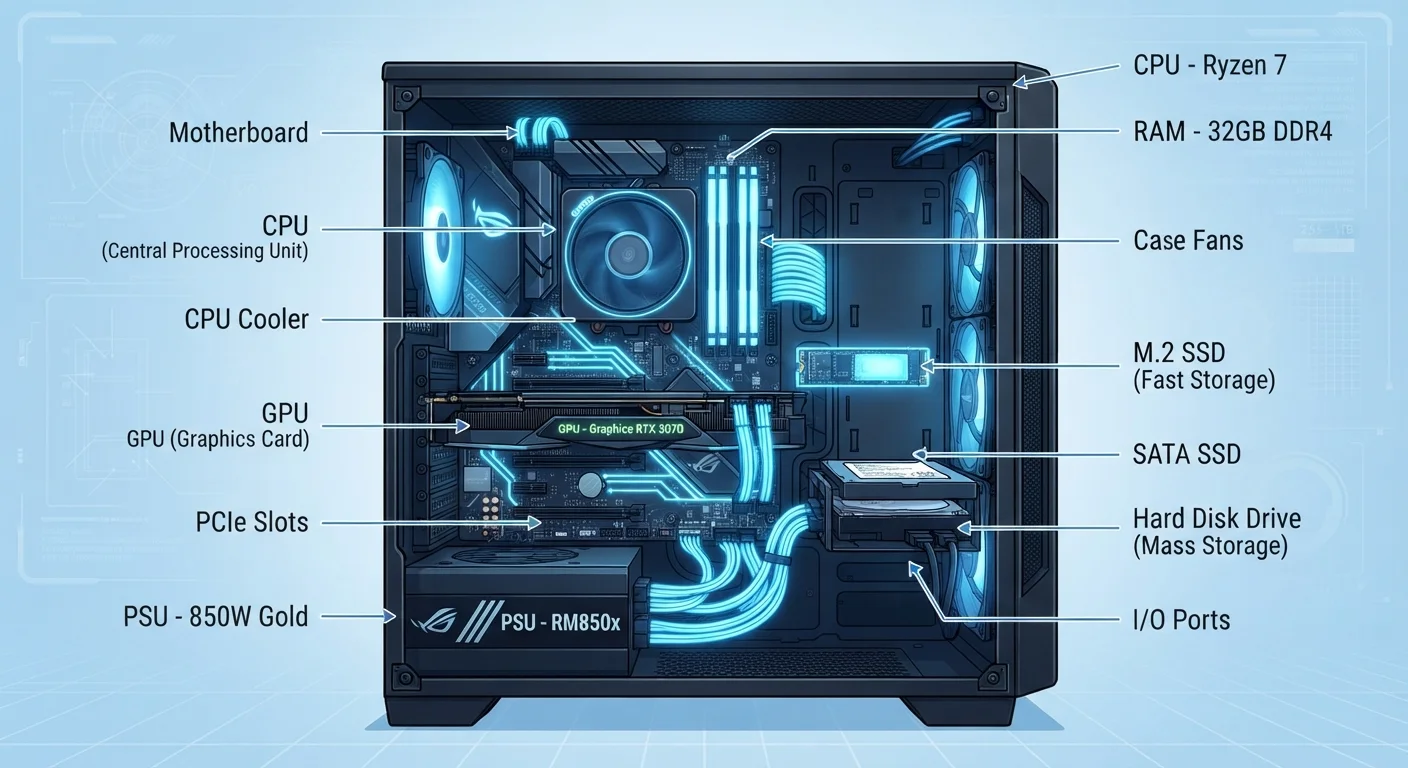
Inside any computer, a small number of components handle all the work. Understanding what each one does is the fastest way to make sense of everything else.
- CPU (Central Processing Unit): This is the processor - the component that actually executes instructions. It performs calculations, makes logical decisions, and coordinates everything else. A faster CPU can handle more instructions per second.
- RAM (Random Access Memory): Think of RAM as the computer's short-term working memory. When you open a program, it's loaded from storage into RAM so the CPU can reach it quickly. RAM is fast but temporary - its contents disappear when power is cut.
- Storage (Hard Drive or SSD): This is where everything lives permanently: your operating system, applications, photos, and documents. A traditional hard disk drive (HDD) uses spinning magnetic platters; a solid-state drive (SSD) uses flash memory chips and is significantly faster.
- Motherboard: The large circuit board that connects all other components. Every part communicates through pathways on the motherboard called buses.
- Power Supply Unit (PSU): Converts AC power from your wall outlet into the lower DC voltages that internal components require.
- GPU (Graphics Processing Unit): Handles the work of rendering what you see on screen. In everyday computers it may be built into the CPU; in gaming or creative machines it's often a separate, powerful card.
For a deeper look at how these translate into the numbers on a spec sheet, see our guide on what RAM, storage, and processing speed actually mean.
What Happens When You Press the Power Button
Booting a computer is not a single action - it's a precise sequence of events that happens the same way, every time.
- Power flows to the motherboard. The PSU converts wall power and delivers it to the motherboard and connected components.
- The firmware runs a self-check. A small program stored on a chip on the motherboard - called the BIOS or UEFI - wakes up and runs a quick diagnostic called the POST (Power-On Self-Test). It checks that essential hardware like RAM and storage are present and responding.
- The bootloader is found. The firmware looks for an operating system on your storage drive. It hands control to a small program called a bootloader, whose only job is to find and start the operating system.
- The operating system loads into RAM. Windows, macOS, or another OS is read from storage and loaded into RAM, where the CPU can work with it at full speed.
- Your desktop appears. The OS initializes drivers (small programs that let it communicate with each hardware device), starts background services, and finally displays the interface you interact with.
SSD Makes Boot Times Much Shorter
If your computer takes a long time to reach the desktop, storage speed is often the bottleneck. Because the OS must be read from storage during boot, an SSD can cut startup time dramatically compared to a traditional spinning hard drive. It's one of the most noticeable hardware upgrades a computer can receive.
How Software Talks to Hardware
One of the most useful things to understand is that your apps - a browser, a word processor, a game - don't communicate directly with your CPU or RAM. They go through an intermediary: the operating system.
The operating system acts as a traffic controller and translator. When your browser wants to display a webpage, it asks the OS to allocate some RAM, access the network card, and send pixels to the GPU. The OS handles all of that, making sure different programs don't interfere with each other and that hardware resources are shared fairly.
This layer is also why the same Microsoft Word can run on many different computer models: Word talks to Windows, and Windows handles the differences in hardware underneath. Curious how the major operating systems compare in this role? Our explainer on Windows, macOS, and Linux side by side covers exactly that.
The internet is another layer of this idea - your browser software talks to the OS, which talks to your network hardware, which exchanges data with remote servers. You can trace that full chain in our article on what happens when you type a web address. For broader context on networked systems, the Internet & Networks hub is a useful starting point.
Putting It All Together
Computers feel complex because so many things happen simultaneously and invisibly. But the underlying logic is consistent: components have defined roles, they communicate through structured pathways, and software gives instructions that hardware carries out - all mediated by the operating system.
Once this mental model is in place, things that seemed mysterious start to make sense. A slow computer usually means one of those layers is bottlenecked - perhaps RAM is full, storage is fragmented, or the CPU is overwhelmed by too many tasks at once. Our guide on why computers slow down over time explains exactly how those bottlenecks develop.
You don't need to be an engineer to benefit from understanding this. Knowing what RAM does helps you evaluate whether a new laptop has enough of it. Knowing what an SSD is helps you understand why one computer feels snappier than another. This knowledge puts you in the driver's seat - not just as a user, but as someone who can make genuinely informed decisions about the technology they rely on every day.
RAM, Storage & Processing Power Explained
Once you know what each component does, the next step is understanding the numbers on a spec sheet. This guide translates CPU speed, RAM capacity, and storage type into plain-English meaning.
Why Computers Slow Down Over Time
Learn how everyday use gradually taxes RAM, storage, and the CPU - and what that means for the performance you experience day to day.