

Key Takeaways
Computer Performance Degradation
Computer performance degradation is the gradual slowdown that most computers experience over time. It happens when the demands placed on a machine - by software, stored data, and background processes - begin to outpace what the hardware can comfortably handle. This isn't a single problem with a single cause; it's usually several factors compounding each other.
Performance bottlenecks can occur at the CPU, RAM, storage layer, or across all three simultaneously, making diagnosis more complex than a single metric suggests.
The Basic Problem: More Demand, Same Hardware
When you buy a computer, it's sized for the software of that moment. But software doesn't stand still. Operating systems grow larger with each update, applications add features that need more processing power, and browser engines become more sophisticated to handle richer websites. Your hardware, however, stays exactly the same.
This mismatch is the fundamental engine of computer slowdown. Understanding what your specs actually mean helps clarify why a machine that felt fast two years ago now struggles with tasks that seem routine.
Think of it like a highway built for light traffic that now handles rush-hour volumes. The road hasn't changed - everything around it has.
Check Your Startup Programs First
One of the quickest wins for a sluggish computer is reviewing which programs launch automatically at startup. On Windows, open Task Manager and click the Startup tab. On a Mac, go to System Settings and look under General > Login Items. Disabling programs you don't need at boot can noticeably reduce the time it takes to get up and running.
Background Processes: The Hidden Competition for Resources
Every program you've ever installed may still be running - even when you're not using it. Many applications set themselves to launch automatically at startup and continue running quietly in the background. Antivirus tools, cloud sync services, software updaters, and chat apps all compete silently for the same pool of CPU time and RAM.
RAM (Random Access Memory) is your computer's active workspace. When it fills up, the operating system starts borrowing space from your storage drive - a process called paging or virtual memory. Storage is orders of magnitude slower than RAM, so the moment this happens, everything feels sluggish. Opening a new tab, switching between apps, or even moving your cursor can start to lag.
20-30%
Typical RAM used by background processes at idle
On a standard consumer PC running Windows 10 or 11, the operating system and its background services alone commonly consume 20-30% of available RAM before any user applications are opened.
10x+
Speed difference between RAM and storage access
Even fast SSDs are significantly slower than RAM for active data access; when a system runs out of RAM and starts using storage as overflow, response times can increase by an order of magnitude or more.
5-7 years
Typical useful lifespan of a consumer PC
Industry observers and repair professionals generally estimate that most consumer computers remain practical for everyday tasks for roughly five to seven years, depending on usage and maintenance.
You can usually see what's running by opening your system's task manager (Windows) or Activity Monitor (Mac). Sorting by CPU or memory usage often reveals surprising culprits - programs you haven't thought about in months, quietly consuming resources.
Storage: Why a Full Drive Drags Everything Down
Traditional hard disk drives (HDDs) store data on spinning magnetic platters. When a drive is mostly empty, data can be written in large, organized chunks. As it fills up, the drive increasingly has to scatter pieces of a single file across different physical locations - a condition called fragmentation. Reassembling those fragments every time you open a file takes extra time.
Solid-state drives (SSDs) don't have spinning parts and handle fragmentation differently, but they're not immune to slowdowns. When an SSD nears capacity, the way it manages free space for new writes becomes less efficient, and performance can still drop noticeably.
Either way, keeping significant free space on your drive - generally at least 10-15% - is one of the simplest things you can do for sustained performance. For more on building good habits around this, see keeping a computer healthy over time.
Thermal Throttling: When Heat Is the Real Culprit
Computers generate heat - processors especially. When a CPU gets too hot, it deliberately reduces its own speed to avoid damage, a protective mechanism called thermal throttling. The result: a machine that slows down precisely when you're asking the most of it.
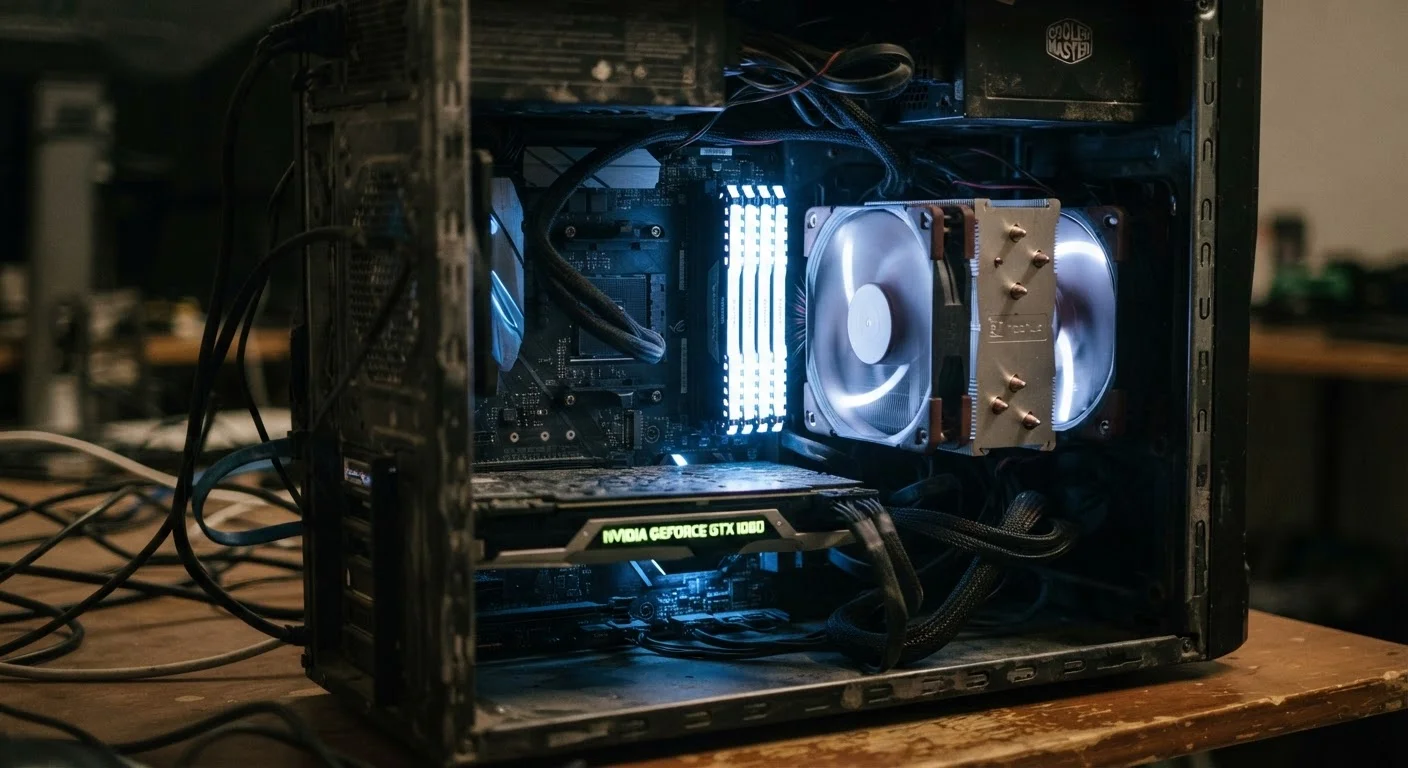
Dust is the most common cause. Over months and years, dust accumulates inside the case, clogging fans and vents and trapping heat. A laptop that ran quietly for years might now run its fan constantly and still feel sluggish under load - often because the cooling system is clogged rather than because anything is broken.
“Heat is the silent killer of computer hardware. Most performance problems I see in older machines aren't caused by failing components - they're caused by years of accumulated dust blocking airflow that was designed to keep everything running at full speed.”
— A senior hardware repair technician, Computer repair professional with over a decade of hands-on diagnostics experience
This is one reason a computer's performance can feel dramatically different after a cleaning, even if no software changes were made. It's also worth noting that a computer's useful lifespan is often shortened by preventable heat damage rather than component obsolescence alone.
When It's Not Your Computer at All
Slowness doesn't always trace back to your machine's hardware or software. If web pages load slowly but local applications feel fine, your internet connection - or the website itself - may be the real bottleneck. Before assuming your computer needs attention, it's worth working through a checklist of common home network issues first.
Similarly, some slowdowns are misattributed to the computer when they're actually caused by a struggling router, a congested Wi-Fi channel, or a remote server under heavy load. Isolating which layer is actually slow saves a lot of unnecessary troubleshooting.