

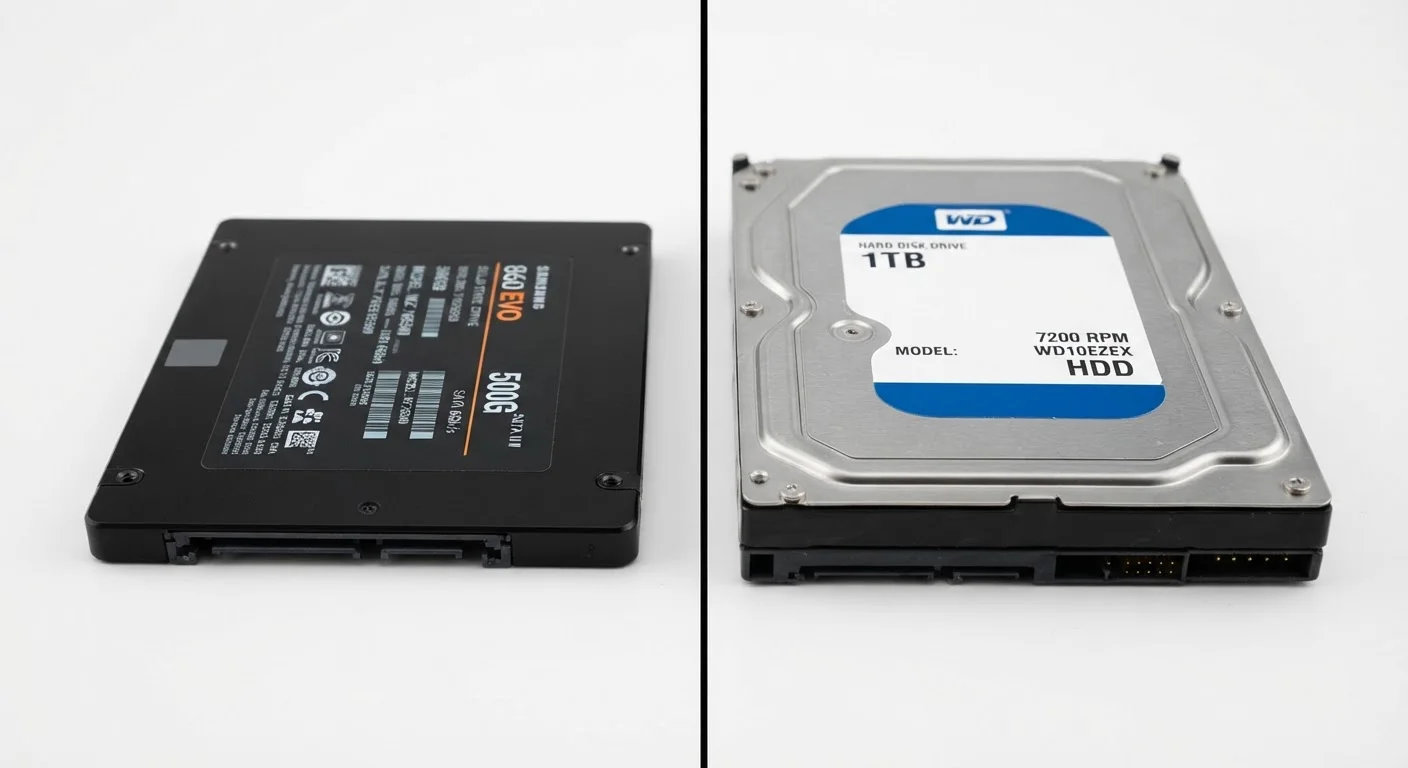
Key Takeaways
Option A
SSD (Solid-State Drive)
The faster, more durable modern standard.
Best for: Users who want quick boot times, snappy app performance, and a drive that can handle bumps and movement.
Option B
HDD (Hard Disk Drive)
The established, high-capacity workhorse.
Best for: Users who need large amounts of storage space and don't need top-tier speed for everyday tasks.
If you want your computer to boot and respond noticeably faster
SSD (Solid-State Drive)
SSDs access data almost instantly because there are no moving parts. Boot times and app launches can drop from minutes to seconds.
If you need to store a very large library of files on a tight budget
HDD (Hard Disk Drive)
HDDs typically offer more gigabytes per dollar, making them practical for archiving videos, photos, and backups in bulk.
If you use a laptop that travels with you regularly
SSD (Solid-State Drive)
Without spinning platters, SSDs are far less vulnerable to damage from drops, vibration, or movement during use.
If you're building a desktop for long-term media storage or backups
HDD (Hard Disk Drive)
A desktop that stays in one place can safely use an HDD for secondary storage without the durability trade-off being a concern.
How Each Drive Actually Stores Your Data
The core difference between an SSD and an HDD comes down to the mechanism each uses to hold information. A hard disk drive (HDD) stores data on spinning magnetic platters - circular disks that rotate at high speed while a mechanical arm reads and writes information across their surface. It's a bit like a record player, except instead of playing audio, it's retrieving your files. Because of this physical movement, the drive must wait for the right part of the platter to rotate into position before it can access data.
A solid-state drive (SSD) works completely differently. It stores data in flash memory chips - the same general technology used in USB thumb drives - with no spinning parts at all. When your computer requests a file, the SSD retrieves it electronically, nearly instantaneously. There's no waiting for a platter to spin or an arm to move.
This mechanical-versus-electronic distinction is the root cause of nearly every practical difference between the two drive types. For a broader look at how storage fits into your computer's overall specs, see our guide to RAM, storage, and processing power.
| Criterion | SSD | HDD |
|---|---|---|
| Data storage method | Flash memory chips (no moving parts) | Spinning magnetic platters |
| Read/write speed | Very fast - near-instant access | Slower - depends on platter rotation |
| Boot time | Typically under 15 seconds | Often 30-90 seconds or more |
| Physical durability | High - resists shock and vibration | Lower - vulnerable to drops when active |
| Noise level | Silent | Audible hum or clicking |
| Cost per gigabyte | Higher | Lower |
| Typical capacity range | 256 GB - 4 TB (common) | 500 GB - 20 TB (common) |
| Best use case | Everyday computing, laptops, OS drive | Bulk storage, backups, desktop archives |
Speed, Durability, and What You'll Actually Notice
For most users, the most immediate effect of switching to an SSD is speed. Boot times - the time it takes your computer to go from powered off to a usable desktop - can drop dramatically. Applications open faster, files save more quickly, and the overall system feels more responsive. This is especially noticeable on older computers that were originally built with HDDs.
Durability is the other major real-world difference. Because an HDD has spinning platters and a moving read/write arm, a hard knock or drop while the drive is running can cause those parts to collide - a condition sometimes called a head crash - resulting in data loss or permanent damage. An SSD has no moving parts to collide, making it considerably more resilient to physical shock and everyday movement. This is a meaningful advantage for laptop users.
~500 MB/s
Typical SSD sequential read speed
Standard SATA SSDs commonly reach around 500 MB/s; newer NVMe SSDs can exceed 3,000 MB/s in sequential reads.
~120 MB/s
Typical HDD sequential read speed
Most 7,200 RPM consumer HDDs perform in the 100-160 MB/s range for sequential data reads.
No moving parts
SSD mechanical failure points
The absence of spinning platters and actuator arms eliminates the most common causes of sudden mechanical drive failure.
Noise and heat are smaller but noticeable differences too. HDDs produce a faint humming or clicking sound and generate more heat through mechanical friction. SSDs operate silently and cooler, which can also contribute to a slightly longer device lifespan.
If you're weighing storage choices as part of a broader device decision, our article on desktop vs. laptop trade-offs covers how form factor affects which storage type makes sense.
Capacity, Lifespan, and Choosing What Fits Your Needs
HDDs have traditionally offered more storage space for the money. If you need several terabytes to hold a large video library, a music collection, or years of photo backups, an HDD is typically the more economical route. SSDs at very high capacities exist but tend to cost more.
On the lifespan question, both drive types have limits - they just fail differently. HDDs can fail mechanically when their moving parts wear out, often without warning. SSDs have a finite number of write cycles per memory cell, though for typical everyday use - browsing, documents, streaming - most users will rarely approach that limit during the practical life of a device.
One practical note: whatever storage type you use, maintaining a separate backup is important. Neither HDDs nor SSDs are immune to failure. Cloud storage can complement either drive type as a second copy of critical files.
In short, SSDs offer speed and durability advantages that suit most everyday computing needs, while HDDs remain a practical choice when raw capacity and cost-per-gigabyte are the top priorities. Understanding which factors matter most for how you actually use your computer is the key to making the right call.