

Key Takeaways
Start here
The Two Boxes Explained
Go deeper
How a Modem Works
Then this
How a Router Works
Common scenario
When One Box Does Both Jobs
Apply it
Making Sense of Your Setup
The Two Boxes Explained
Most home internet setups involve at least two pieces of hardware: a modem and a router. They sit near each other, both covered in blinking lights, and it's completely natural to assume they do the same thing. They don't - and understanding the difference is the first step to confidently managing your home network.
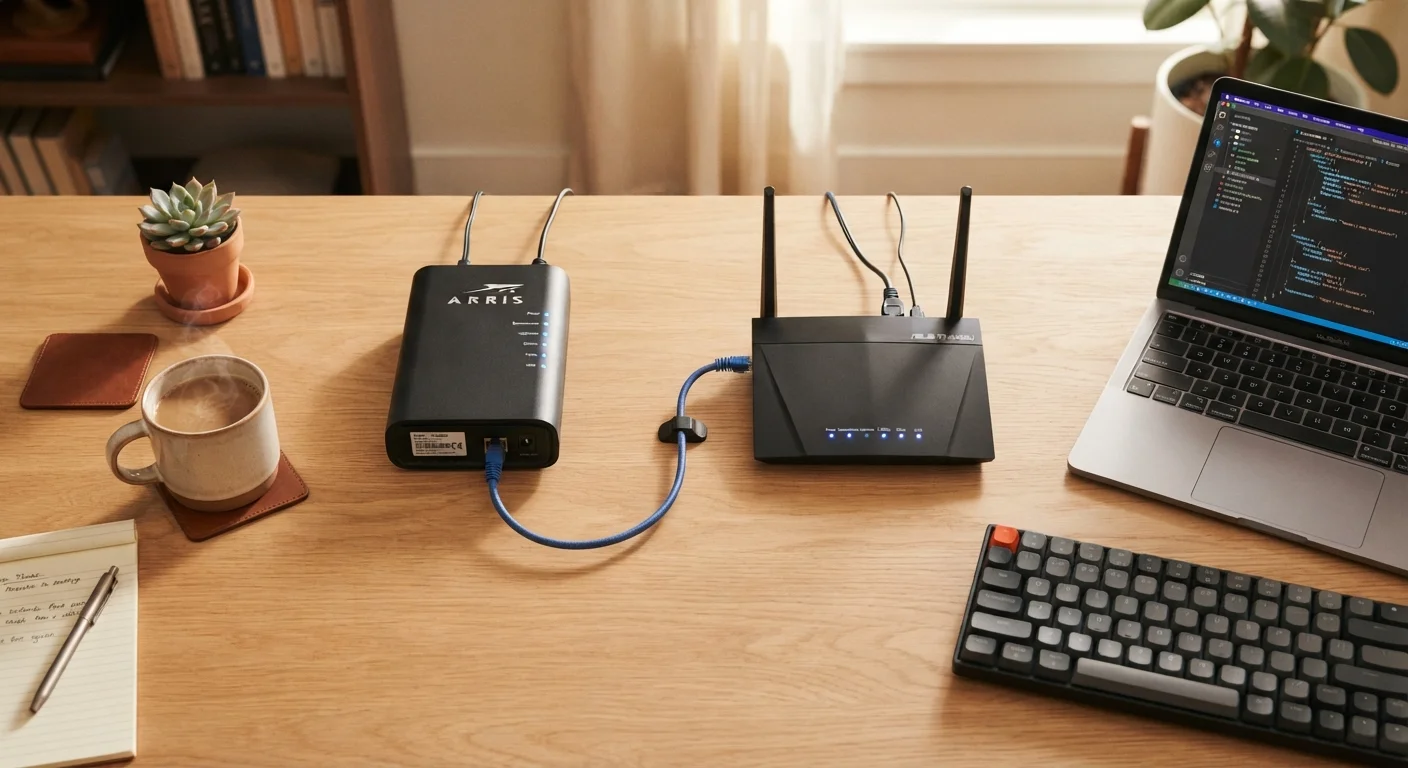
Think of it this way: the modem is your home's front door to the internet, while the router is the hallway that directs traffic to every room inside. Each has a distinct job, and when something goes wrong with your connection, knowing which box does what can save you a frustrating troubleshooting session.
Modem
A device that translates signals from your ISP's network into data your home devices can use, and vice versa.
Router
A device that creates a local network in your home, assigns addresses to your devices, and manages how data flows between them and the internet.
Gateway
A single device that combines the functions of both a modem and a router, commonly provided by ISPs.
NAT (Network Address Translation)
A router technique that lets multiple devices share one public IP address by tracking which device sent each request.
IP Address
A unique numerical label assigned to each device on a network so data knows where to go.
ISP (Internet Service Provider)
The company - such as a cable or fiber provider - that sells you access to the internet.
How a Modem Works
Your internet service provider (ISP) delivers a signal to your home - over a coaxial cable, a phone line, or fiber-optic cable, depending on your plan. The problem is that your computer and phone speak a different language than those raw signals. The modem's job is translation.
The word modem is short for modulator-demodulator. It converts (modulates) outgoing digital data from your devices into a format that travels over your ISP's infrastructure, and it converts (demodulates) incoming signals back into data your devices can read. Without a modem, your devices have no way to communicate with the broader internet.
The modem connects to your ISP on one side - via that coaxial or phone line port - and to your router on the other side using a standard Ethernet cable. It's assigned a public IP address by your ISP, which is the address the rest of the internet uses to find your home. To learn more about how IP addresses work, see our guide to public vs. private IP addresses.
How a Router Works
Once the modem has brought the internet into your home, the router takes over. Its primary job is to create a local network - a private space where all of your devices (phones, laptops, smart TVs, tablets) can communicate with each other and share that single internet connection.
The router assigns each device its own private IP address, keeps track of which device requested what data, and makes sure the right information goes back to the right device. It also creates your Wi-Fi signal, which is the wireless version of that same local network.
Restart in the Right Order
When troubleshooting, always restart your modem first and wait about 30 seconds before restarting your router. This gives the modem time to re-establish its connection with your ISP before the router tries to use it. Doing it in reverse order often means the router comes back online before the modem is ready, prolonging the outage.
Routers also act as a basic security barrier. They use a technique called NAT (Network Address Translation) to hide your individual devices behind a single public address, which makes it harder for outside parties to directly target any one device. For a deeper look at everything your router manages behind the scenes, see what your Wi-Fi router is actually doing.
When One Box Does Both Jobs
Many ISPs provide a single device - often called a gateway or a modem-router combo - that handles both functions. This is convenient and reduces cable clutter, but it comes with trade-offs.
Combo units are generally optimized for simplicity rather than performance. If you want to upgrade your router to improve Wi-Fi coverage or add features, you'd have to either replace the entire gateway or configure the combo unit in bridge mode, which disables its routing function and lets a separate router take over.
Bridge Mode: A Useful Middle Ground
If your ISP's gateway combo unit has limitations you want to work around, you can often enable bridge mode in its settings. This turns off the routing and Wi-Fi features of the combo unit and lets a separate router you choose handle those tasks. Your ISP's support team can usually walk you through enabling it.
If whole-home Wi-Fi coverage is a concern, the type of router - or whether to switch to a mesh system - matters as much as the modem. Comparing mesh networks to traditional routers can help you figure out which approach fits your space.
Making Sense of Your Setup
Now that you know what each device does, here's a practical way to apply it. When your internet stops working, ask two questions:
- Can my devices see the Wi-Fi network at all? If not, the router may be the issue - check its power and lights first.
- Can my devices connect to Wi-Fi but not reach any websites? That points to the modem or the ISP connection - check the modem's lights and consider calling your provider.
Understanding your plan's specifications is also easier once you know this architecture. Speeds like Mbps and concepts like latency all refer to what the modem delivers from your ISP - not what your router creates internally. Reading your internet plan's key terms can help you make sense of what you're actually paying for. And if you want to go further into how the internet finds websites on your behalf, understanding DNS is a natural next step.