

Key Takeaways
Wi-Fi Router
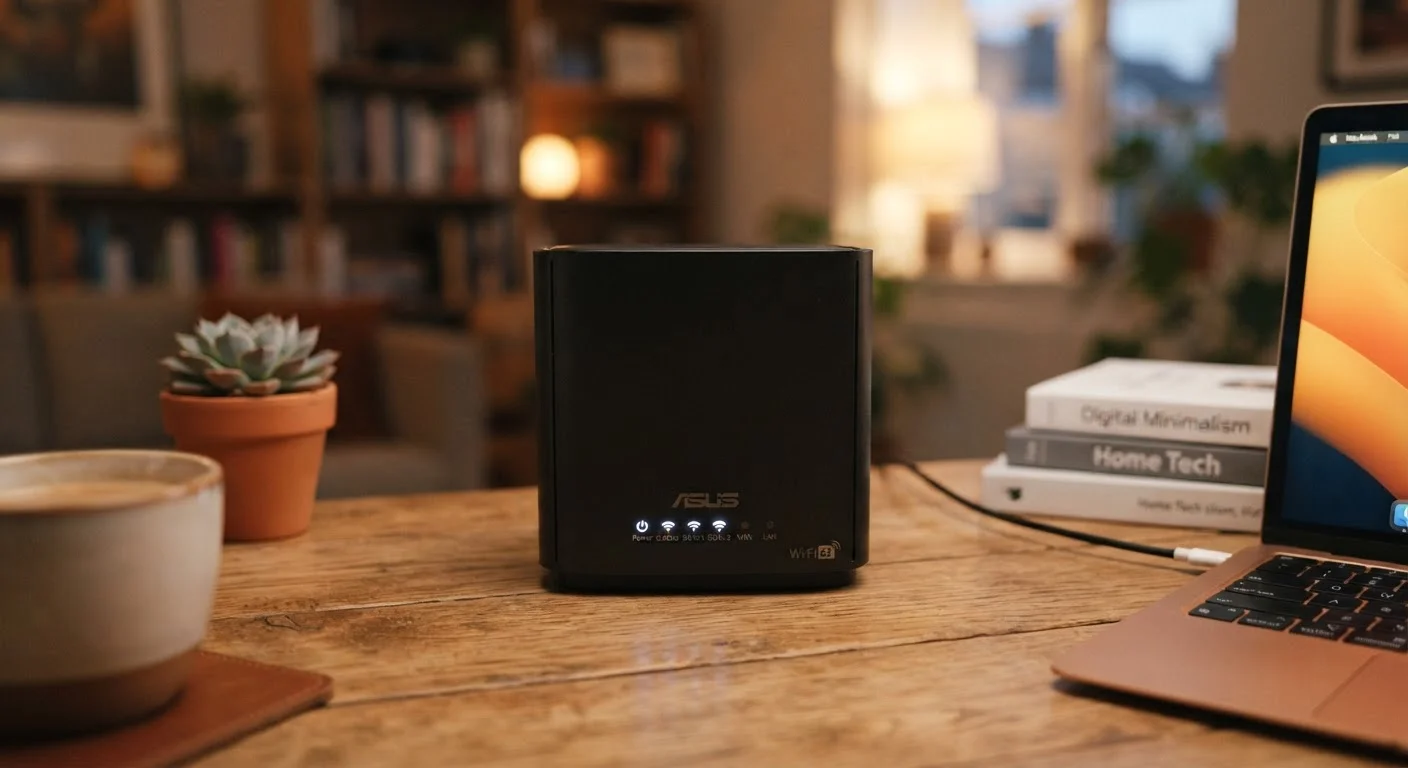
A Wi-Fi router is a device that connects your home devices - phones, laptops, smart TVs - to the internet and to each other. It acts like a traffic director, sending the right data to the right device at the right time. Without it, each device would have no way to share your internet connection.
Technically, a router handles network-layer routing (directing data packets between networks), while a separate modem handles the physical connection to your ISP - though many homes use a combined modem-router unit.
The Traffic Director in Your Home
Most people think of their router as the box that makes Wi-Fi happen. That's true - but it's only a small part of what's going on. Every time you load a webpage, stream a video, or send a message, your router is making split-second decisions about where data should go.
At its core, a router's job is to connect two different networks: your private home network (all your devices) and the public internet. It reads the destination address on every chunk of data - called a packet - and forwards it to the right place, much like a postal sorting facility.
For a broader look at how devices communicate, see how devices talk to each other using Wi-Fi and other standards.
16.4 billion
Wi-Fi connected devices worldwide
According to Wi-Fi Alliance estimates, the number of Wi-Fi enabled devices in use globally has reached into the tens of billions, highlighting how central routers have become to everyday life.
2.4 GHz & 5 GHz
Most common dual-band router frequencies
The vast majority of home routers sold today broadcast on both the 2.4 GHz and 5 GHz bands, giving users flexibility for different device types and distances.
~30 devices
Average devices per US household network
Research from Deloitte and others has found that the average American household connects a growing number of devices - from phones and laptops to smart speakers and appliances - all managed by a single router.
How Your Router Assigns Addresses
When a new device joins your network - say, a laptop or a smart thermostat - your router automatically gives it a private IP address using a system called DHCP. Think of this as handing out numbered seats at an event so everyone has a unique place to receive their mail.
These private addresses (like 192.168.1.5) are only meaningful inside your home. When your router sends data out to the internet, it uses a single public IP address that your internet service provider assigned to you. It tracks which internal device made which request, so when the response comes back, it knows exactly where to deliver it. This translation process is called NAT - Network Address Translation.
This system also means your individual devices are never directly exposed to the open internet, which provides a basic layer of security by default.
Broadcasting Wi-Fi - and Why Bands Matter
Your router broadcasts radio signals that your devices pick up as Wi-Fi. Most modern routers broadcast on two frequency bands simultaneously: 2.4 GHz and 5 GHz.
- 2.4 GHz travels farther and passes through walls more easily, but it's a crowded band shared by many neighboring networks and devices like microwaves.
- 5 GHz offers faster speeds over shorter distances and tends to be less congested - ideal for a streaming device or gaming console close to the router.
Newer routers also support a 6 GHz band (part of the Wi-Fi 6E standard), which offers even greater speeds and less interference where device support exists.
If you're weighing Wi-Fi against a wired connection for certain devices, Ethernet vs. Wi-Fi explains when a cable still has the edge.
Choose the Right Band for Each Device
Connect devices that move around your home - phones, tablets - to 2.4 GHz for better range. Plug stationary devices that demand speed - streaming sticks, gaming consoles - into 5 GHz or, better yet, a wired Ethernet connection. Many routers let you name both bands the same so devices choose automatically.
DNS, Firewalls, and the Quiet Work Behind the Scenes
Your router handles more than just forwarding data. Two other jobs it performs continuously are often invisible to users.
DNS forwarding: Every time you type a web address, that name needs to be converted to a numeric IP address before any data can travel. Your router typically forwards these lookups to a DNS server - often your ISP's by default. Understanding how DNS works can help you grasp why changing DNS settings can affect both speed and privacy.
Built-in firewall: Your router blocks unsolicited incoming traffic from the internet. Unless you've specifically opened a port, outside computers cannot initiate a connection to devices inside your network. This isn't foolproof - securing your home Wi-Fi covers what steps you should still take - but it provides a meaningful baseline.
To see the full picture of what happens from the moment you type a URL, here's what happens when you type a web address - from DNS lookup to page load.