

Key Takeaways
Why Your Current Notification Setup Is Probably Working Against You
The average smartphone owner has dozens of apps installed, and most of them arrive with notifications switched on by default. That default state - every app buzzing for attention throughout the day - isn't a recommendation. It's just the path of least resistance for app developers who want to stay visible.
What most people don't realize is that both iOS and Android have built rich, granular notification systems that go far beyond a simple on/off switch. You can tell your phone which alerts from an app matter, when they're allowed to appear, how loudly they should announce themselves, and whether they can even light up your screen at all. Done right, this turns your phone from a distraction machine into a tool that only interrupts you when something genuinely warrants it.
If you've also never reviewed what your apps are allowed to access in the background, our guide on app permissions worth auditing pairs well with this walkthrough.
Start With the Noisiest Apps First
You don't have to audit every app at once. Pull down your notification shade and look at which apps sent alerts in the last 24 hours - that list is your priority queue. Tackling just the top five noisy apps will account for the majority of your interruptions.
What the Settings Actually Let You Do
Before diving into steps, it helps to understand the tools available to you on each platform.
On Android, most apps expose notification channels - distinct categories within a single app. A news app, for example, might have separate channels for breaking alerts, daily digests, and promotional offers. You can mute the promotions channel while keeping breaking alerts active. You can also assign each channel a priority level, controlling whether it makes noise, shows a banner, or silently lands in the shade.
On iOS, you have per-app controls for banners, sounds, badges (the red dot on the icon), and lock-screen visibility. iOS 15 and later added notification summaries, which bundle low-priority alerts into a scheduled delivery - so a cluster of newsletter pings arrives once in the morning rather than trickling in all day. iOS also offers Focus modes, which filter notifications based on the activity you're engaged in, such as Work, Sleep, or Personal.
Both platforms support scheduled delivery, Do Not Disturb, and the ability to allow certain contacts or apps to break through any silence for genuine emergencies.
How to Audit and Adjust Your Notification Settings
Follow these steps to take control. The exact menu names vary slightly by device model and OS version, but the paths below reflect current standard Android and iOS interfaces.
Open your phone's main notification settings
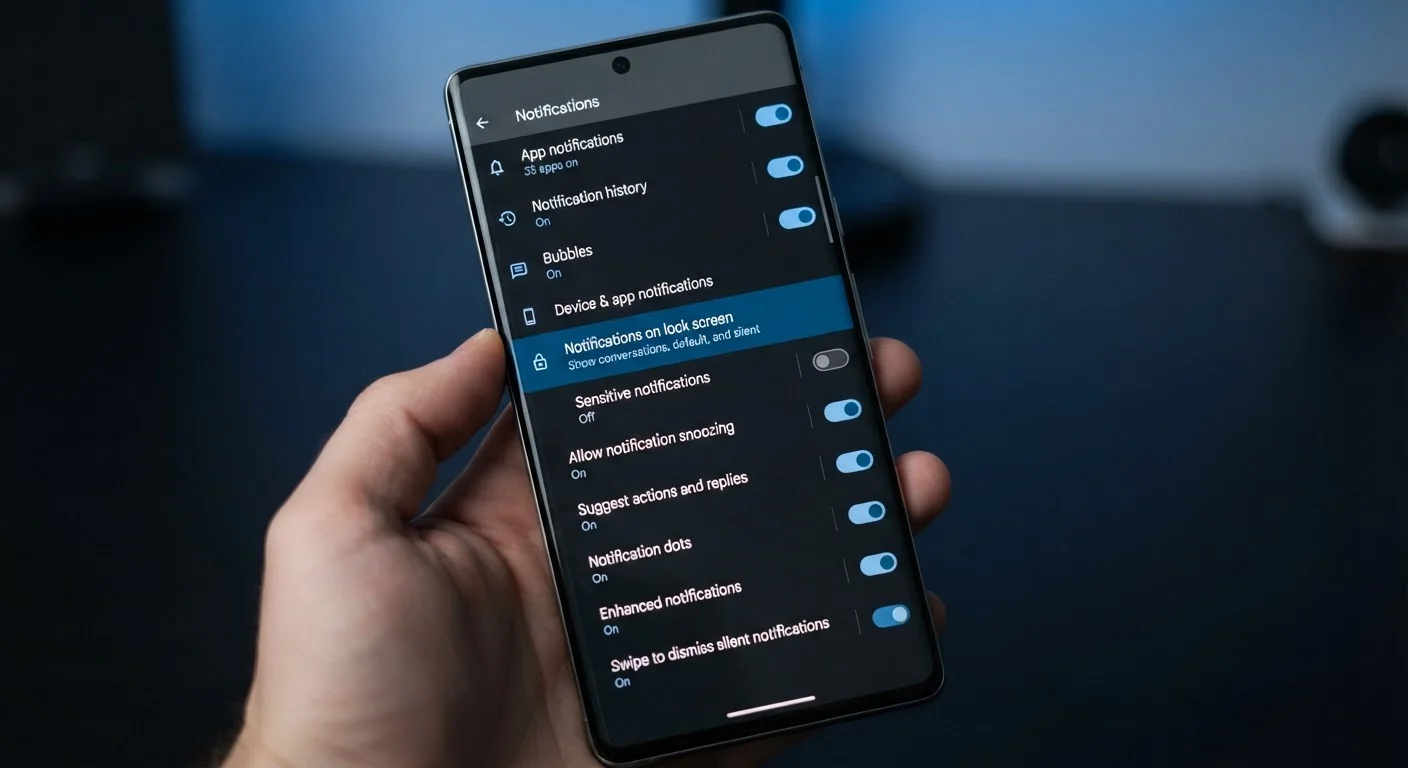
Android: Go to Settings → Notifications (sometimes listed under Apps & Notifications). You'll see a list of recently active apps along with how many notifications each has sent.
iOS: Go to Settings → Notifications. Every installed app that can send notifications appears here.
Review each app one by one - starting with the loudest offenders
Tap into each app's notification entry. Ask yourself: Does this app earn the right to interrupt me? For apps that don't, turn notifications off entirely. For apps you want to keep, look at the sub-options before moving on.
Customize notification channels (Android) or delivery options (iOS)
Android: Inside each app's notification settings, tap Categories or scroll to see the list of channels. Toggle individual channels off, or tap one to set its priority (silent, low, default, high, urgent).
iOS: For each app, choose whether to allow banners, sounds, and badge icons. Set the Banner Style to Temporary (disappears on its own) or Persistent (stays until dismissed). Enable Scheduled Summary for low-priority apps to batch their alerts.
Set up Focus modes or Do Not Disturb schedules
Android: Go to Settings → Digital Wellbeing & parental controls → Focus mode. Select which apps can distract you and schedule when Focus mode activates automatically.
iOS: Go to Settings → Focus. You'll find presets like Sleep, Work, and Personal. Each Focus lets you specify which people and apps can still reach you, and you can set a schedule so it activates automatically.
Test your new configuration for one day
Use your phone normally for a full day after making changes. Note any alerts you missed that you actually needed, and re-enable those specific channels or apps. Fine-tuning matters more than getting it perfect on the first pass.
Making the Changes Stick
A one-time audit is useful, but notification creep is real - every app update or newly installed app can reset or add new notification categories. Set a reminder to revisit your notification settings every few months, especially after a major OS update.
Also consider pairing your notification discipline with other phone habits. Understanding how your phone manages background apps can help you make smarter decisions about which apps stay active at all. And if you use your calendar to protect focused work time, the tools covered in our calendar app deep-dive work hand-in-hand with Focus modes.
Don't Silence Everything at Once
It's tempting to mute all notifications and start from scratch, but that approach risks missing alerts tied to security, health apps, or communication you rely on. Take a selective, app-by-app approach so you stay covered while reducing noise.
The payoff for spending 15-20 minutes on these settings is real: a phone that feels calmer, a workday with fewer interruptions, and the confidence that you won't miss anything that actually matters.