

Key Takeaways
Why Most People Use So Little of Their Calendar
If you're using your calendar app mainly to block out meetings and set a single reminder, you're in good company - but you're also leaving a lot of value on the table. Most calendar apps, whether that's Google Calendar, Apple Calendar, or Microsoft Outlook, are built with a full suite of scheduling and productivity tools that rarely get touched after the initial setup.
The reason is simple: the basic functions work well enough that there's rarely a visible reason to dig deeper. But once you understand what's available, it becomes hard to go back to the minimal approach. These features aren't hidden - they're just underexplored.
Use multiple calendars with color-coding for different life areas.
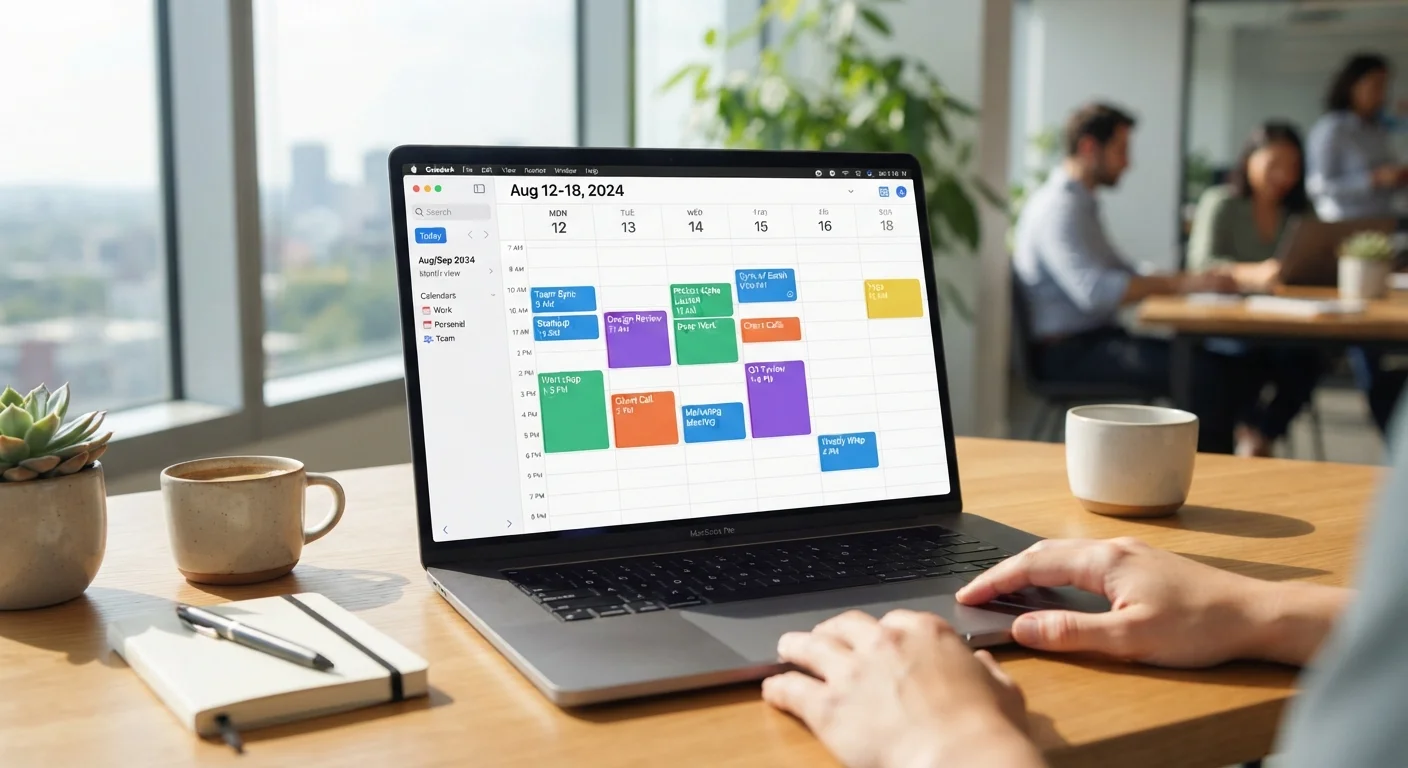
When everything lives in one undifferentiated calendar, it's hard to see at a glance where your time is going. Separating work, personal, health appointments, and side projects into labeled, color-coded calendars gives you an instant visual summary of your week.
Add buffer time between meetings as a recurring block.
Back-to-back meetings leave no room to process what was discussed, follow up on action items, or simply take a break. Scheduling a 10-15 minute buffer after significant meetings prevents the cognitive overload of jumping straight from one conversation to another.
Set up a scheduling link to share your availability.
The back-and-forth of 'Does Tuesday at 2 work for you?' is one of the most common time drains in a professional's week. Many calendar apps natively support or integrate with scheduling tools that let others book open slots without an email chain.
Use recurring events for habits, not just repeat meetings.
Recurring event functionality isn't only for weekly standups. Setting recurring time blocks for exercise, focused work, or even weekly planning sessions treats those priorities as real commitments rather than aspirational intentions.
Enable multiple time zones when working across regions.
If you regularly coordinate with people in other time zones, displaying a secondary clock on your calendar eliminates the mental math and the risk of scheduling errors. Most major calendar apps support showing a second time zone alongside your local one.
Write useful event descriptions, not just titles.
A meeting labeled 'Call with Sarah' tells you nothing about what to prepare. Adding a brief agenda, a link to the relevant document, or a dial-in number directly in the event description means you arrive prepared without hunting through emails.
Practices That Transform How You Schedule
The following practices move your calendar from a passive record of commitments to an active tool that shapes your day and protects your time.
Connecting Your Calendar to the Rest of Your Digital Life
One of the biggest untapped benefits of modern calendar apps is how well they integrate with other software you already use. Video conferencing tools, task managers, and even note-taking apps can sync with your calendar so that joining a meeting, finding your prep notes, or checking off a related task happens in fewer steps.
Many calendar apps also support calendar subscriptions - read-only feeds from external sources like a sports league schedule, a school's academic calendar, or a project management tool. These appear directly in your calendar without you manually entering anything.
If your app allows it, check the settings for integrations or connected apps. The permissions involved are worth reviewing carefully - for a broader look at what apps access on your device, see this guide to app permissions.
Similarly, if you use notification settings to manage your attention, your calendar's alert system works best when it complements how you handle interruptions overall. Your phone's notification controls are worth revisiting alongside your calendar reminders to make sure the two systems reinforce each other rather than compete.
Calendar Apps and Privacy
Calendar apps often request access to your contacts, location, and microphone to support features like smart scheduling and location-based reminders. These permissions are usually optional - you can grant only what's needed for the features you actually use. Review your app's permission settings periodically to make sure the access still makes sense for how you use it.