

Key Takeaways
Why Most Speed Tests Give Misleading Results
Speed tests are simple to run but easy to run badly. Most people launch a test on a Wi-Fi-connected laptop while a show streams in another tab, glance at the number, and either feel reassured or frustrated - without knowing whether the result reflects anything real. The conditions under which you test matter as much as the test itself.
There's also a common misconception worth clearing up: a speed test measures the throughput between your device and a specific test server, not the speed of every website you visit. That distinction matters. Common myths about internet speed can shape unrealistic expectations - understanding what a test actually measures helps you interpret results accurately.
One Test Is Not Enough
A speed test is only meaningful in context. A single result can be skewed by a busy server, a brief network hiccup, or background activity you didn't notice. Always run at least three tests across different times before drawing any conclusions about your connection's performance.
What You'll Need Before You Start
Getting an accurate reading requires minimal setup, but a few things in place make a real difference.
What you will need
Web browser
Used to access a speed test tool without installing additional software.
Ethernet cable
Connects your device directly to the router for the most reliable test result.
Smartphone or tablet
Allows you to test Wi-Fi or mobile data speeds separately from your main device.
How to Run the Test Correctly
Follow these steps in order for the most reliable result. If a wired connection isn't an option, the steps still apply - just keep in mind that your Wi-Fi environment will introduce some variability that's worth accounting for.
Connect directly to your router if possible
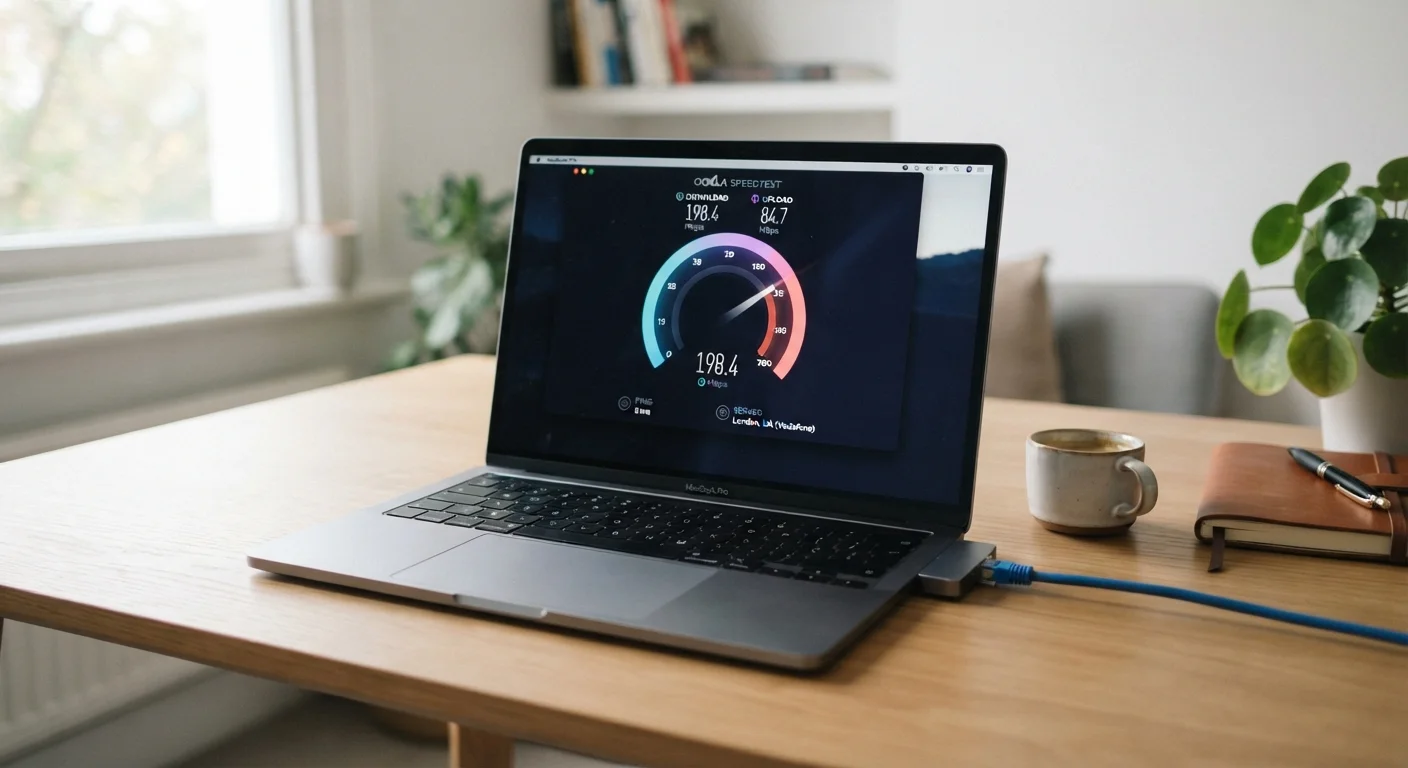
Plug an ethernet cable from your router into your laptop or desktop. Wi-Fi introduces signal variability - walls, interference, and distance from the router all reduce measured speeds in ways that don't reflect your actual plan performance. A wired connection removes those variables and gives you a cleaner baseline reading.
Close background apps and pause any downloads
Streaming services, cloud backups, software updates, and even open browser tabs can quietly consume bandwidth during your test. Before you begin, close unnecessary applications, pause any active downloads or uploads, and disconnect other devices from the network if you want to measure the full capacity of your connection rather than what's left over.
Open a speed test tool in your browser
Navigate to a reputable speed test service in your browser. Several are freely available and widely used. When the page loads, look for a button labeled Go or Start. Do not open additional tabs while the test runs - even an idle tab refreshing in the background can slightly skew results.
Run the test and record your results
Once the test completes, you'll see three key figures: download speed (how fast data comes to your device), upload speed (how fast your device sends data out), and latency (also called ping, measured in milliseconds). Write down all three. Download speed matters most for everyday browsing and streaming; upload speed is critical for video calls and sending large files; latency affects real-time activities like gaming and video conferencing.
Repeat the test at different times of day
A single test is a snapshot, not a diagnosis. Network congestion on your street or in your building tends to peak in the evening when many households are active simultaneously. Run tests in the morning, afternoon, and evening on separate days. If speeds drop significantly during peak hours, that pattern is more actionable than any single reading.
Compare results to your plan's advertised speed
Pull up your internet service agreement or provider account page to find your plan's advertised download and upload speeds. Most providers specify these in megabits per second (Mbps). Wired test results within 80-90% of the advertised rate are generally considered normal. Consistently getting far below that range - across multiple tests, at different times - is a meaningful signal worth investigating further. See things worth checking before calling your ISP to work through a home checklist first.
Testing Wi-Fi? Location Matters
If you need to test wireless speeds specifically, run the test from the same room as your router first to establish a best-case Wi-Fi baseline. Then test from the room where you actually use the internet. The difference between those two readings tells you how much your environment is limiting your wireless signal.
Understanding What Your Results Actually Mean
Once you have a set of readings across different times and conditions, you're in a much better position to interpret them. A wired result close to your plan's advertised speed means your connection to the router is healthy. Consistently lower speeds on Wi-Fi point to a wireless coverage or interference issue, not necessarily a problem with your ISP.
Latency (ping) below 50 milliseconds is generally fine for most uses. Video calls typically work well under 100ms. If gaming is a priority, lower is better, and consistency matters more than the absolute number - a stable 30ms connection performs better than one that swings between 10ms and 200ms.
Speed Tests Don't Measure Everything
A strong speed test result doesn't guarantee a smooth experience on every website or app. Server-side issues, routing problems between your ISP and a specific destination, and content delivery network performance are all outside what a standard speed test can measure. If one site is slow but your speed test looks fine, the problem likely isn't your connection.
If your wired results are consistently well below your plan's advertised speed, that's the right moment to document your findings and contact your provider. Having a log of multiple tests with timestamps gives you a concrete basis for the conversation rather than a vague complaint.